
If you recently implemented Consent Mode and noticed a sudden drop in users, sessions, or conversions in GA4, you’re not alone. This is one of the most common issues teams face after making their analytics setup privacy-compliant.
The good news?
In most cases, nothing is broken.
What you’re seeing is usually the result of an incomplete GA4 configuration—not lost data.
Let’s walk through why this happens and how to fix it properly.
Why GA4 Shows Less Data After Consent Mode
When users decline cookies, GA4 can no longer use traditional identifiers like cookies or user IDs. As a result:
- User counts drop
- Sessions look lower
- Conversions appear underreported
This often leads teams to believe Consent Mode “killed” their analytics.
In reality, GA4 is designed to recover much of this missing data using behavioral modeling—but only if the setup is done correctly.
Two things must be in place:
- Consent Mode v2
- Correct GA4 Reporting Identity configuration
If either is missing, GA4 cannot model gaps effectively.
Fix It Step-by-Step (With Visual Guidance)
If you implemented Consent Mode and suddenly saw lower users, sessions, or conversions in GA4, this guide will help you fix it correctly, not just “enable settings and hope.”
Step 1: Confirm Consent Mode v2 Is Implemented
GA4 will not model missing data unless Consent Mode v2 is active.
You must be sending these signals:
- ad_storage
- analytics_storage
- ad_user_data
- ad_personalization
When consent is denied, GA4 still receives cookieless pings, which are essential for behavioral modeling.
How to verify quickly
- Open your website
- Open Chrome DevTools → Network
- Filter by collect?v=2
- Check request parameters:
- gcs=G100 or similar (means consent signals are firing)
If Consent Mode v2 isn’t implemented, stop here—GA4 cannot recover data without it.
Step 2: Open GA4 Admin Panel
Now we fix the most commonly missed setting.
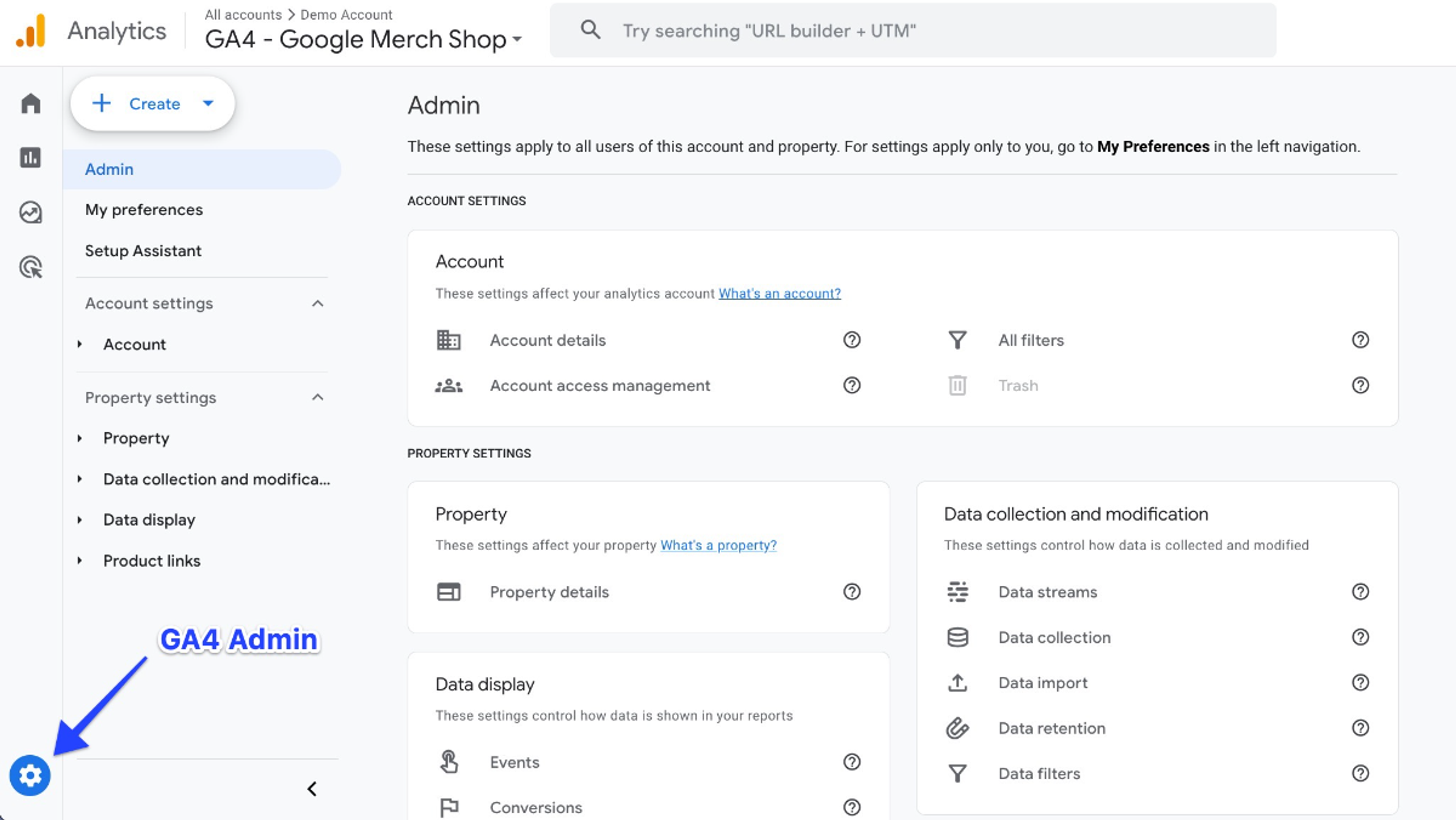
- Open Google Analytics 4
- Select the correct Property
- Click Admin (bottom-left corner)
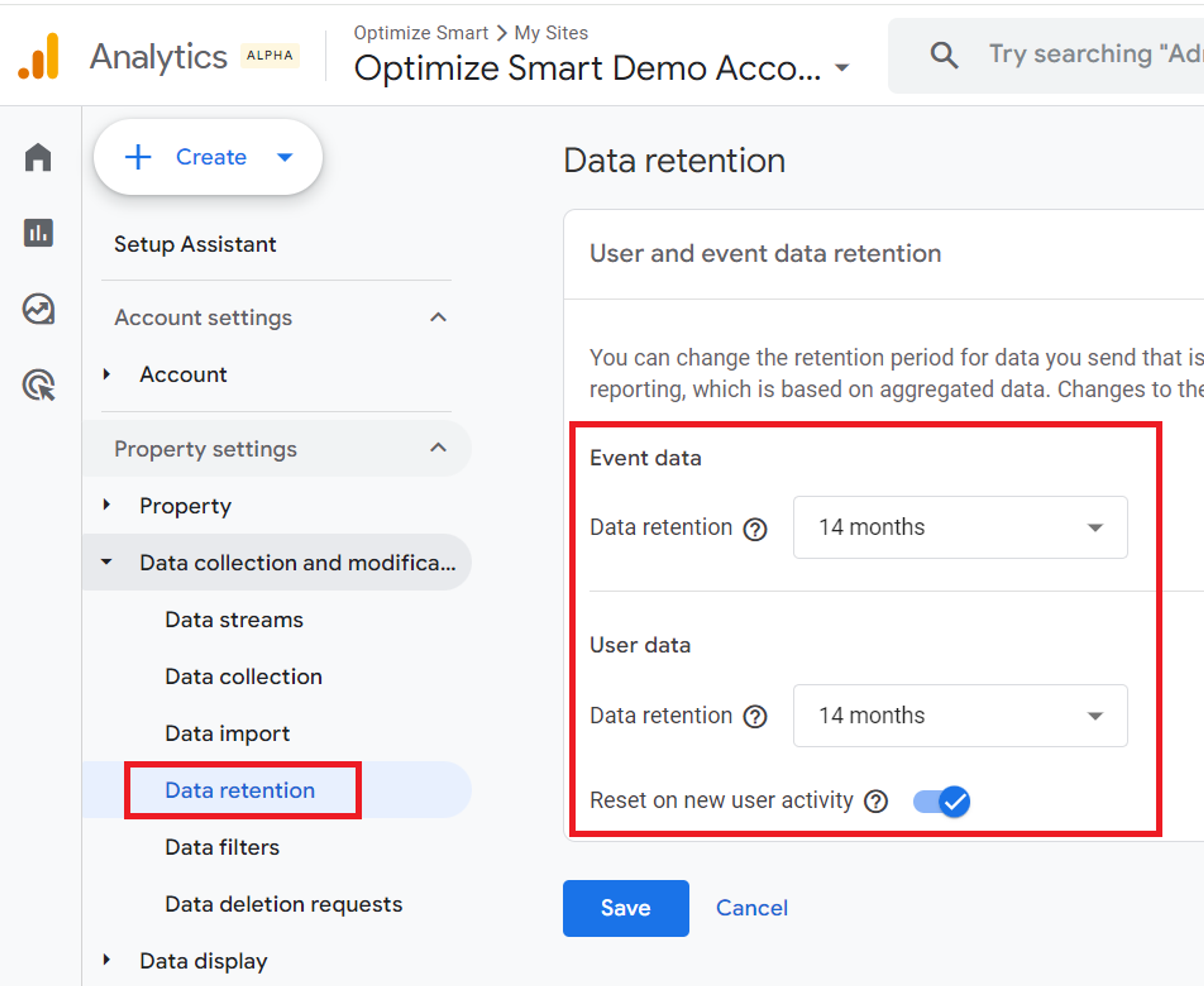
Step 3: Go to Property Settings
Inside the Property column:
- Click Property settings
This is where GA4 controls how it identifies users.
Step 4: Navigate to Reporting Identity
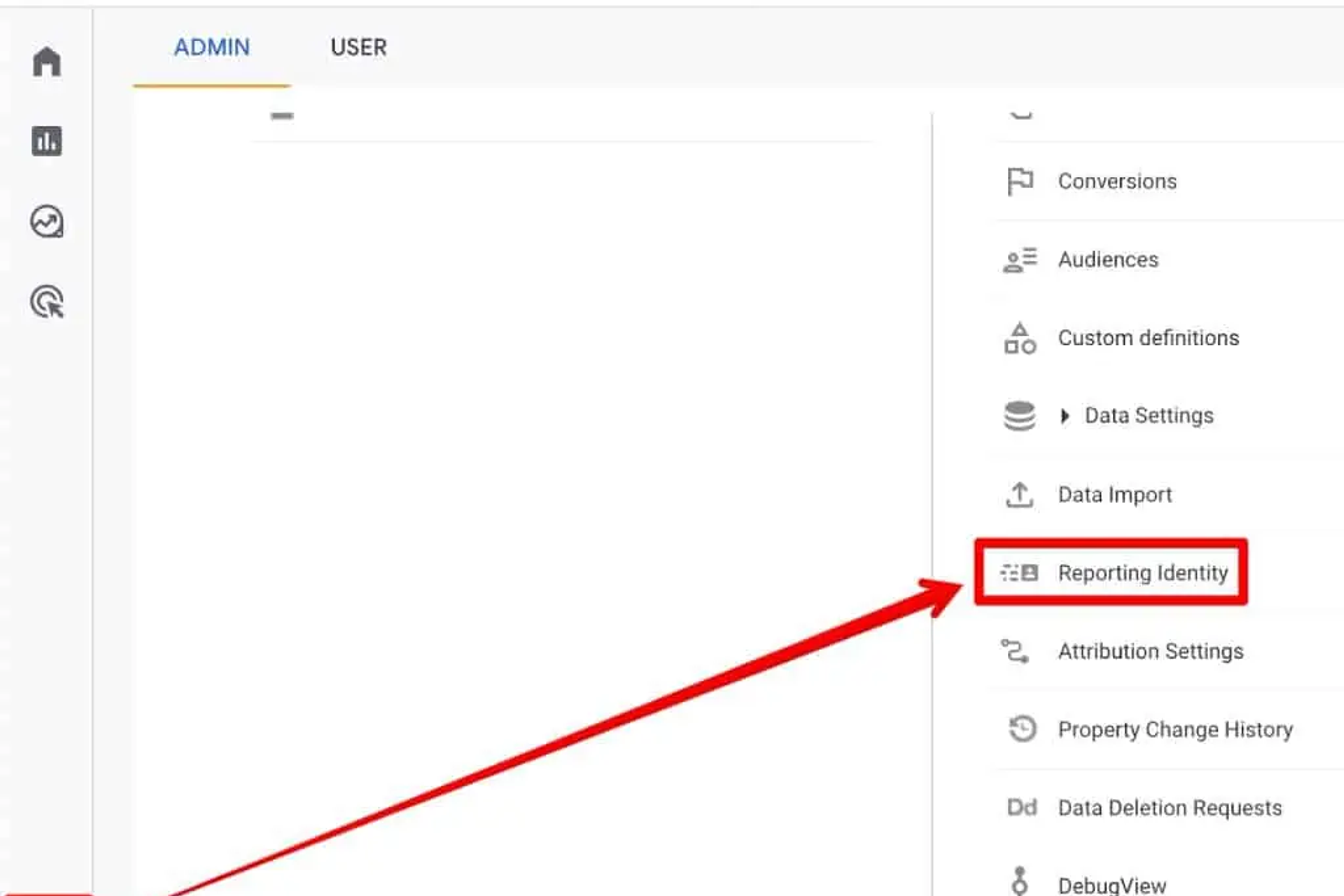
- Inside Property Settings
- Click Data display
- Select Reporting identity
- You’ll now see the three options.
Step 5: Select “Blended” (This Is the Fix)
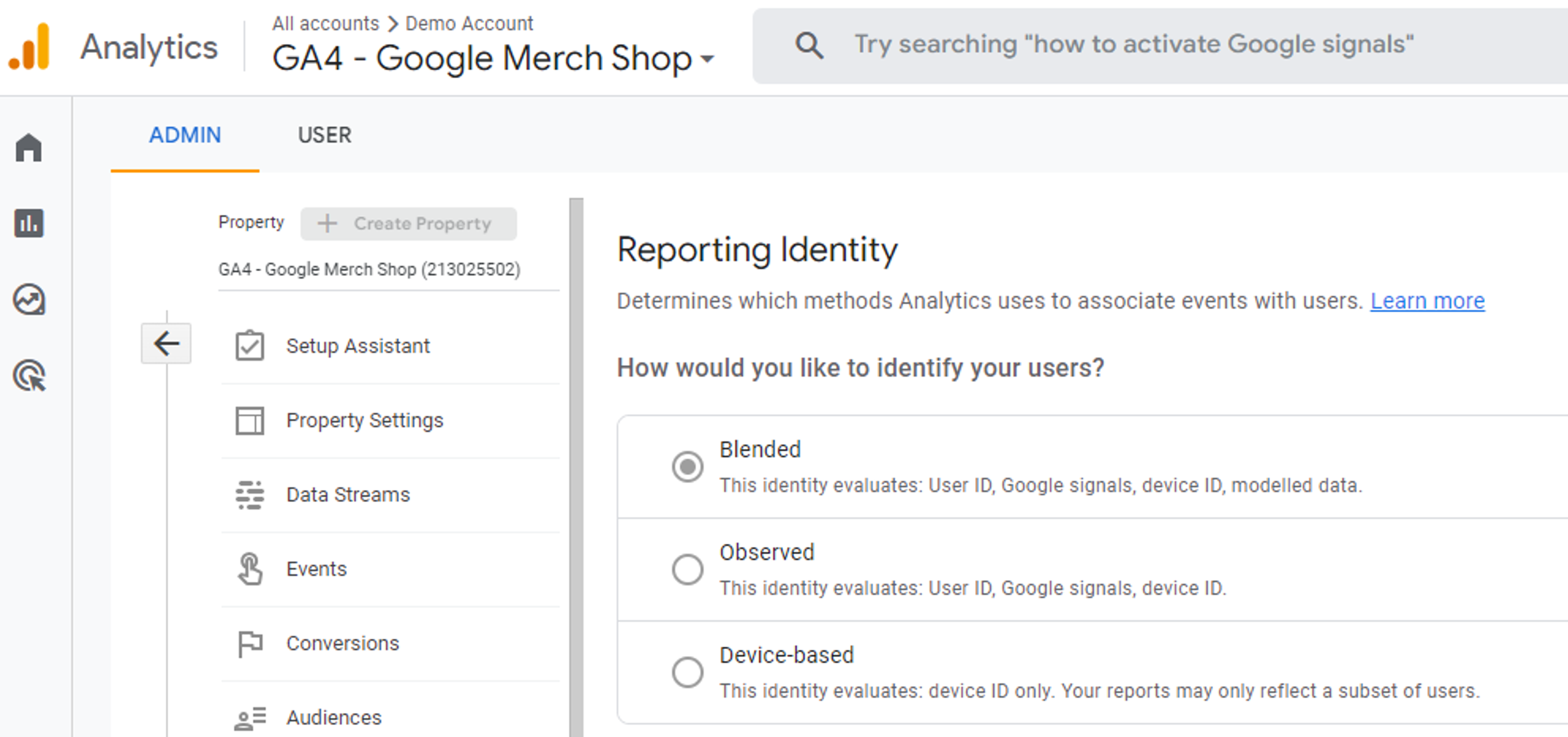
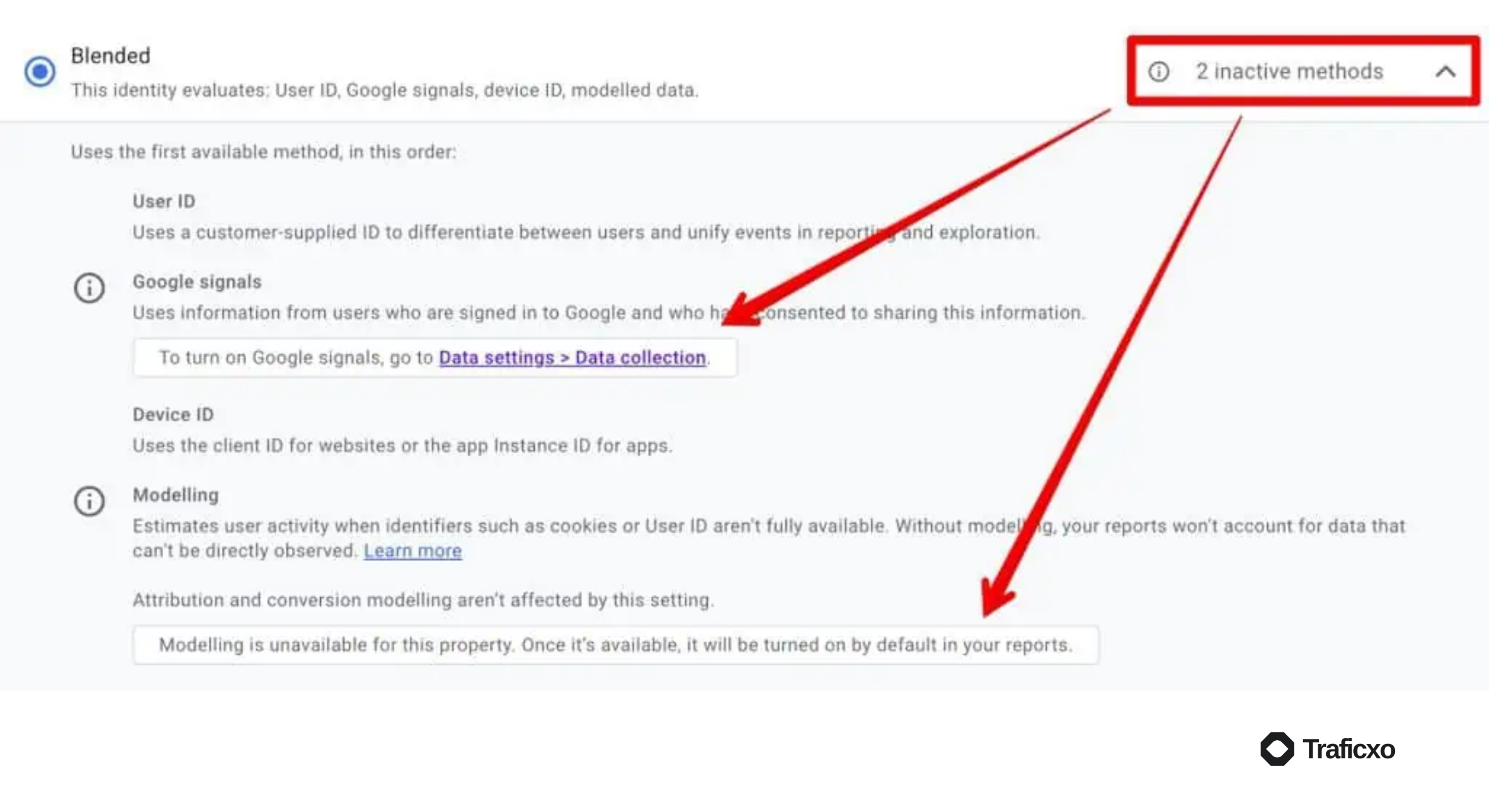
Available options:
- Device-based: (worst after consent)
- Observed: (partial)
- Blended: (recommended)
Why Blended Works
Blended allows GA4 to:
- Use real user data when consent is given
- Use modeled data when consent is denied
- Combine both into a single, realistic dataset
Select Blended and Save.
Step 6: Wait (Yes, This Part Matters)
GA4 modeling is not instant.
What to expect:
- 24–48 hours for early stabilization
- 7–14 days for meaningful trend recovery
- High-traffic sites stabilize faster than low-traffic ones
Do not compare today vs yesterday immediately after the change.
Step 7: Validate That It’s Working (Optional but Smart)
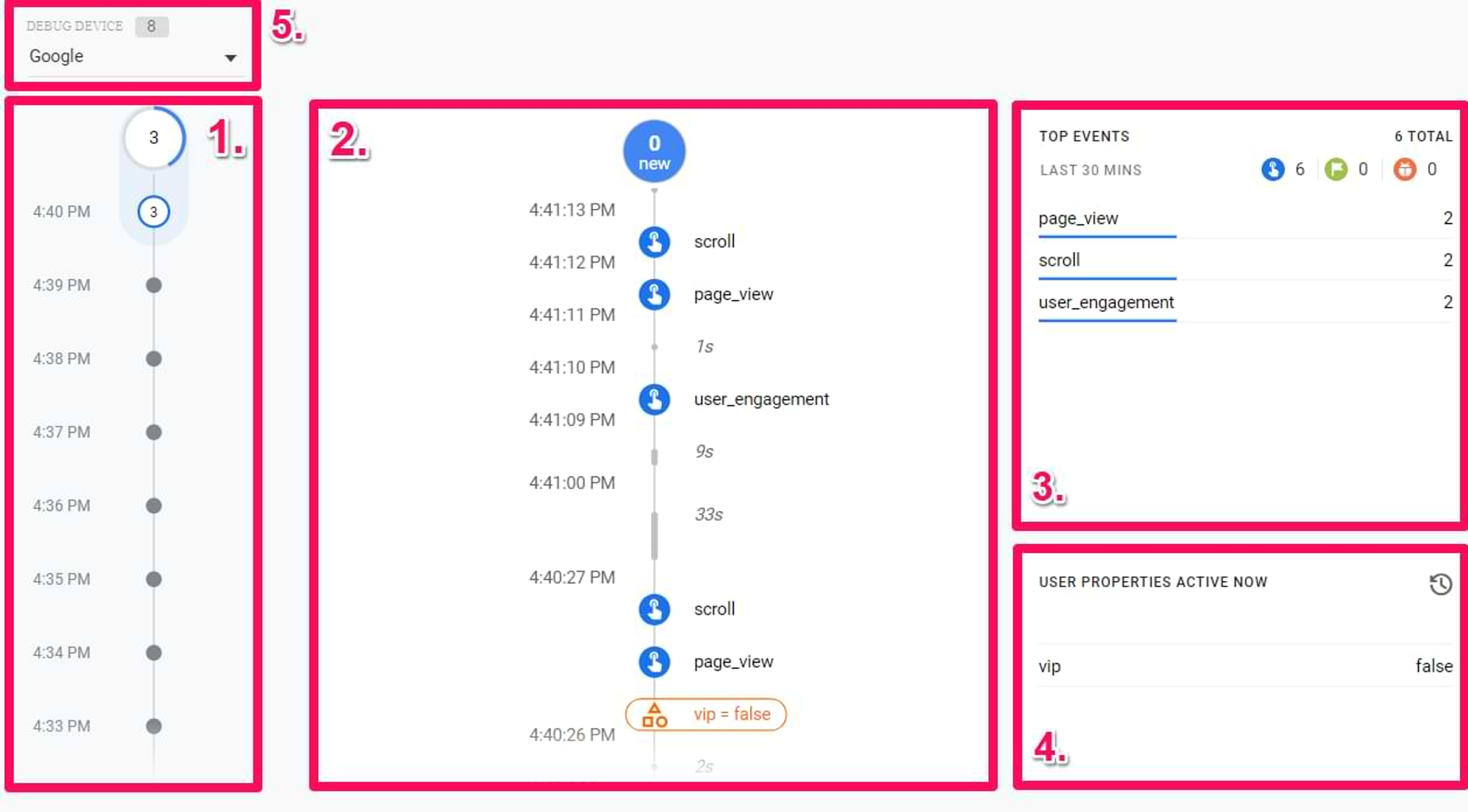
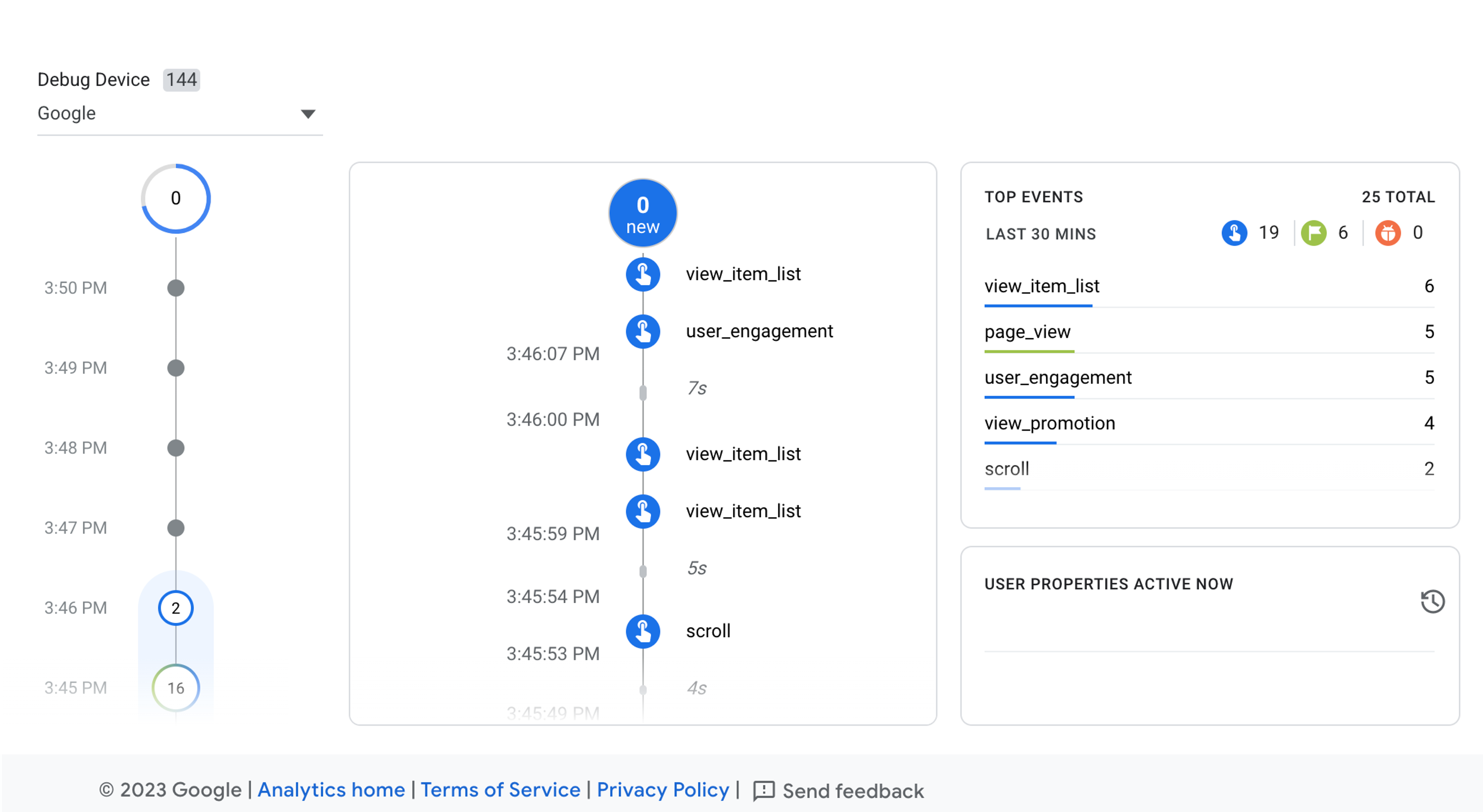
Use:
- GA4 DebugView
- Google Tag Assistant
- Consent banner test (Accept vs Reject)
Check that:
- Events fire even after rejecting cookies
- Modeled conversions appear over time
- Traffic drops are reduced, not eliminated
What Happens After You Fix This?
Once Consent Mode v2 is active and Reporting Identity is set to Blended:
- Traffic trends stabilize
- Conversion numbers become more realistic
- Reporting gaps reduce significantly
One important note: modeling is not instant.
GA4 needs time and sufficient data volume to learn patterns. For most sites:
- Initial stabilization: 24–48 hours
- Meaningful recovery: 7–14 days
Comparing data immediately after the change can be misleading.
Common Mistakes That Still Cause Data Loss
From real-world audits, these are the biggest issues:
- Consent Mode v1 still in use
- Reporting Identity left on Device-based
- GA4 blocked entirely instead of using consent signals
- Expecting GA4 to behave like Universal Analytics
Consent Mode itself is rarely the problem—the setup usually is.
Final Takeaway
Consent Mode doesn’t break GA4. Incorrect reporting identity does.
If:
- Consent Mode v2 is enabled
- Reporting Identity is set to Blended
GA4 will legally recover a large portion of lost insights using modeling—exactly as Google designed it.
Explore Services & Solutions
SEO Services Hub
Access our comprehensive vertical strategies, core processes, and expert resources.
View service hub Specialized SolutionEnterprise Technical SEO
Drive high-intent organic traffic with our advanced technical auditing and optimization frameworks.
Learn moreReady to grow your digital presence?
Connect with our execution specialists for a customized roadmap.