If you’ve watched a Netflix intro, followed an animated graph in a documentary, or seen a logo "build itself" on a website, you’ve experienced motion graphics. But what exactly is it? To the untrained eye, it’s just "animation." But to a designer, it’s the secret sauce that makes static information feel alive.
In a digital world overflowing with content, static images often get ignored, but a well-timed animation can stop a scroll in its tracks. This is the power of motion graphics—the "invisible art" that combines design principles with the energy of movement to tell a story.
Whether you are looking to break into the industry or simply want to understand the technology behind your favorite Netflix intro, this guide breaks down everything you need to know about this dynamic field.
What Exactly Are Motion Graphics?
At its simplest level, motion graphics are "graphics with movement". Unlike traditional character animation (think Disney or Pixar), which relies on complex narrative arcs and lifelike figures, motion graphics focus on visual communication.
- The Focus: Moving text, logos, shapes, and illustrations.
- The Goal: To inform, engage, or evoke emotion by bringing static visual elements to life.
- The Distinction: While traditional animation has a "natural" reference point (like how a human walks), motion graphics are abstract—there is no natural rule for how a font or a grid should move, which gives the designer complete creative freedom.
The Evolution: From Saul Bass to the Digital Age
Motion graphics didn't just appear with the internet; it has deep roots in Hollywood’s golden age.
- The Pioneers: In the 1950s, designers like Saul Bass and Elaine Bass transformed film credits from boring lists of names into artistic experiences for films like North by Northwest.
- The Creative Revolution: The arrival of the Apple Mac in the 1980s empowered designers to move away from physical film-cutting to digital manipulation.
- Modern Ubiquity: Today, motion design is everywhere—from the smart fridge in your kitchen to the projected menu boards at your local fast-food chain.
The Three Pillars of Motion Design Thinking
Creating professional-grade motion isn't just about moving an object from Point A to Point B. It requires a specific strategic mindset often referred to as "Motion Thinking".
1. Abstraction & Metaphor: Since you aren't always using characters, you must use visual metaphors—like a rising line graph to represent success or a pulsing circle to represent a heartbeat—to convey ideas.
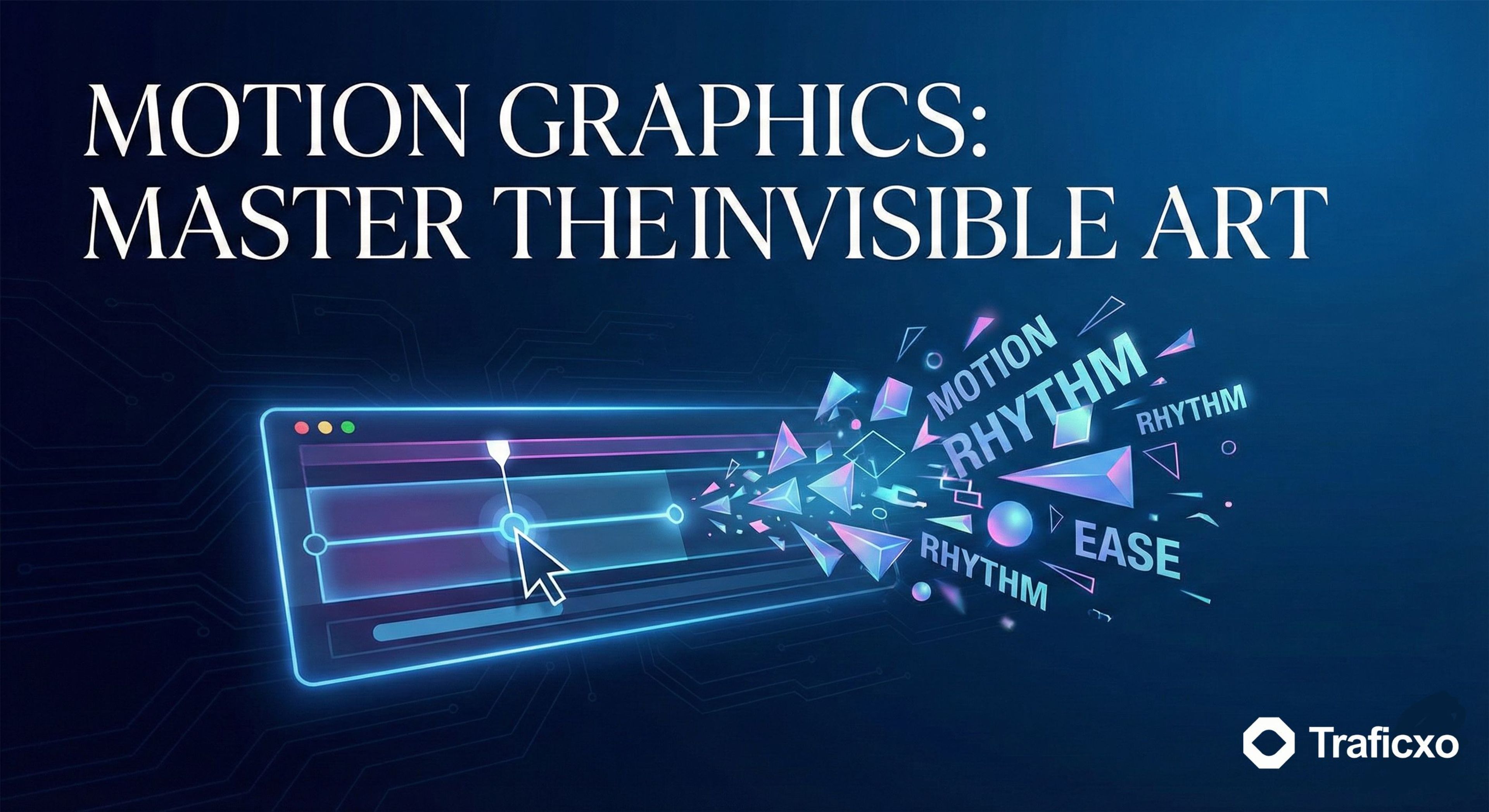
2. Rhythm and Pace: The speed of an animation tells its own story. Fast, energetic transitions create excitement, while slow, smooth "eases" bring a sense of peace or luxury.
3. Reading Time: One of the most common beginner mistakes is moving too fast. Every piece of text and every action needs "breathable" time so the viewer can actually process the information before it disappears.
Where is Motion Graphics Used Today?
The applications are much broader than just "making things look cool."
- Explainer & Educational Videos: These use motion to simplify complex topics, such as how a mental health app works or how an election process functions.
- User Experience (UX) Design: Motion helps build better app interfaces by providing visual feedback when you click a button or swipe a screen.
- Branding & Social Media: Brands use dynamic logos and animated "memes" to stand out in crowded social feeds.
- Film and TV: Opening credits continue to use motion design to set the psychological mood of the story before the first scene even starts.
The Professional Toolkit
If you’re ready to start, you’ll need to familiarize yourself with the software that pros use every day.
- Adobe After Effects: The industry king for 2D animation, used for everything from wiggling text to complex visual effects.
- Cinema 4D & Blender: The go-to tools for 3D motion graphics, widely seen in modern advertising and high-end film titles.
- Adobe Premiere Pro: Often used alongside After Effects to handle the broader sequence and sound mixing.
- Accessible Tools: For social media creators, tools like CapCut or Descript provide AI-driven features like auto-captions and background removal that significantly speed up the workflow.
Building a Career in Motion
Is it a viable career? Absolutely. Trained video editors and motion editors command an average salary of around $80,000, and the demand for digital content is only growing.
- Key Skills: Beyond technical software knowledge, successful designers need an "eye for a story," strong communication skills, and extreme attention to detail to ensure continuity across frames.
- The Path: Most pros start by learning a tool like After Effects, building a digital portfolio of experimental projects, and then pitching to creative agencies or taking on freelance opportunities.
A 30-Day Roadmap to Master the "Art of the Move
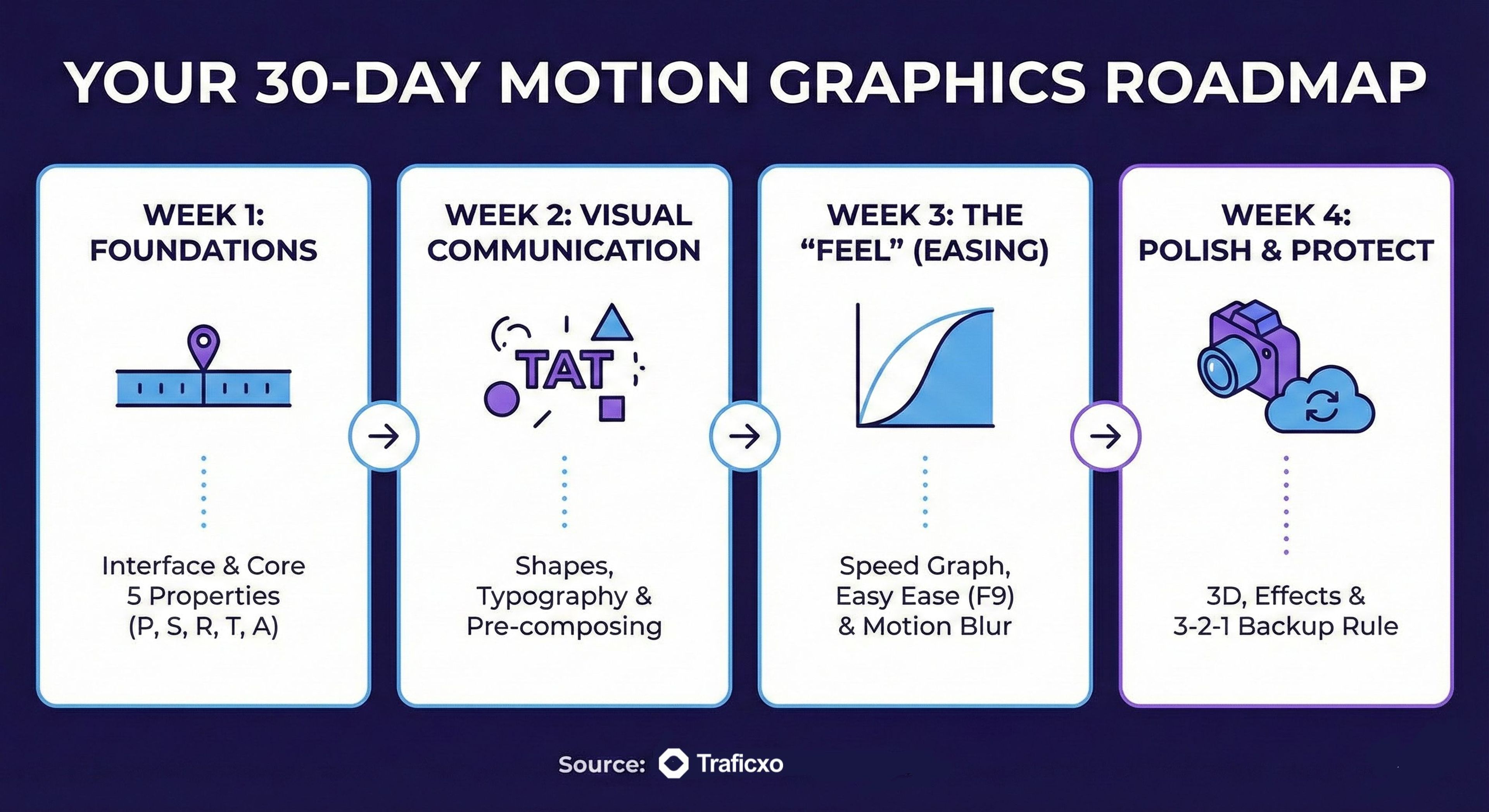
So, you’ve seen those slick, animated logos and data-driven infographics that make complex ideas look effortless, and you’re thinking, "I want to do that." You’re in the right place. Motion graphics is the perfect intersection of graphic design and cinema—it's about giving static design a heartbeat.
While it might feel like you need to be a modern-day wizard to navigate software like Adobe After Effects, you can actually build a solid foundation in just one month if you have a plan. Here is your human-focused, 30-day roadmap to move from "total beginner" to "motion designer."
Week 1: Taming the Beast (Interface & Basic Motion)
Before you can run, you have to learn how the software thinks. Week one is all about getting comfortable with the "non-linear" environment of After Effects.
- Days 1-2: The Interface. Focus on the four main panels: the Project panel (where your files live), the Timeline (where time happens), the Composition panel (your canvas), and the Preview panel.
- Days 3-4: The Five Basic Properties. Memorize these shortcuts—they are your bread and butter: P (Position), S (Scale), R (Rotation), T (Opacity/Transparency), and A (Anchor Point).
- Days 5-7: Your First Animation. Import a simple logo or shape and make it move across the screen using keyframes. Don't worry about it looking "pro" yet; just get the mechanics down.
Week 2: The Power of Typography & Shapes
Motion graphics is often about moving text and icons to communicate a message. This week, we make things look intentional.
- Days 8-10: Shape Layers. Learn to draw and animate primitive shapes. Use the Trim Paths effect—it’s the secret behind those cool "writing" line animations you see in explainer videos.
- Days 11-13: Kinetic Typography. Use the Text Tool to create titles. Experiment with built-in text animators—they allow you to animate individual letters rather than the whole block of text at once.
- Day 14: Organization. Learn to Pre-compose. Think of it like putting layers into a "folder" that you can then animate as a single object. It keeps your timeline from becoming a jumbled mess.
Week 3: Mastering "The Feel" (Easing & Rhythm)
This is the week that separates beginners from pros. It’s not about where things move, but how they move.
- Days 15-17: The Magic of Easing. Static, robotic motion happens when you use standard linear keyframes. Select your keyframes and hit F9 (Easy Ease). This adds natural acceleration and deceleration.
- Days 18-21: The Speed Graph. Open the Graph Editor. This allows you to visually see the speed of your object. Want a "snappy" motion? Pull the handles to make the speed peak at the start.
- Days 22-24: Motion Blur. Always turn on the Motion Blur switch. It adds a realistic blur to fast-moving objects, making the animation feel grounded in reality.
Week 4: Effects, Depth, and The Final Cut
Now we add the "polish" and get your work ready for the world.
- Days 25-27: Effects & Masks. Explore the "Effects & Presets" panel. Try adding a Glow or a Drop Shadow. Learn to use Masks to hide parts of a layer—essential for creating "reveal" animations.
- Day 28: Simple 3D Basics. Switch your layers to 3D and add a Camera. Even a tiny bit of camera movement adds massive depth to a flat design.
- Days 29-30: Rendering & 3-2-1. Export your masterpiece using Media Encoder (H.264 is standard for web). Finally, apply the 3-2-1 rule: 3 copies of your project, 2 media types, and 1 off-site.
Key Takeaways
The true power of modern content creation lies at the intersection of storytelling and motion design. Whether you are a professional editor using Adobe Premiere Pro or a social media creator leveraging CapCut’s AI features, success is defined by your ability to hook an audience within the first 3 seconds and maintain a rhythmic pace that respects "reading time".
To master this field, your 30-day journey begins by mastering the five core properties (Position, Scale, Rotation, Opacity, and Anchor Point) before moving into the "secret sauce" of professional motion: Easing and the Speed Graph. Beyond the creative "feel," professional standards demand rigorous habits: organizing your footage before the first cut, utilizing pre-compositions to manage complexity, and strictly adhering to the 3-2-1 backup rule to eliminate data loss.
By mastering these visual metaphors and technical foundations, you can transform static designs into dynamic, moving narratives. In a landscape where trained specialists earn an average of $80,000, the ability to make design move is no longer just an advantage—it is a digital necessity.
Master After Effects in 30 Days This video provides a structured 4-week roadmap and essential tips for beginners to successfully navigate and master the fundamentals of After Effects within a month.
Explore Services & Solutions
Video Production Hub
Access our comprehensive vertical strategies, core processes, and expert resources.
View service hub Specialized SolutionProfessional Video Editing
Scale your brand narrative with explainer videos, social media reels, and motion graphics.
Learn moreReady to grow your digital presence?
Connect with our execution specialists for a customized roadmap.